
What is DisplayLink? Everything Mac and Windows Users Need to Know

Why Your Mac Won't Connect Two Monitors — And How DisplayLink Fixes It
You plug your USB-C cable into the monitor. Nothing. You try a different cable. Still nothing. You Google it and discover your brand-new MacBook M2 only supports one external display. Frustrating, right?
This is exactly the problem DisplayLink was built to solve. In this guide, we explain what DisplayLink is, how it works in plain English, and why it has become the go-to solution for professionals, IT teams, and everyday users who need more screen real estate without the headaches.
Why Your Mac or Laptop Won't Connect to Two Monitors
Most modern laptops — especially Apple Silicon Macs (M1, M2, M3) — have a hardware limitation built into the chip. Apple's base M1, M2, and M3 chips natively support only one external display. This is not a software bug. It is a physical constraint of the processor.
Did You Know?
Mac M1, M2, and M3 base chips natively support just one external monitor. Without a DisplayLink solution, connecting a second screen simply will not work — no matter which cable or adapter you use.
Windows laptops can also face limitations depending on available ports and GPU support. The solution to both problems is the same: DisplayLink technology.
So, What Exactly is DisplayLink?
DisplayLink is a chip technology developed by Synaptics that compresses and sends video data over a standard USB connection. It essentially tricks your laptop into thinking the external monitors are just USB devices — bypassing the built-in graphics limitations of your chip entirely.

Here is how it works in three simple steps:
Step 1 — Your laptop sends video data
The DisplayLink driver on your laptop compresses the video signal and sends it over USB.
Step 2 — The dock decodes it
The DisplayLink chip inside the dock or adapter receives and decodes the compressed video signal.
Step 3 — Multiple screens light up
Your monitors receive a full-quality video signal in extended desktop mode — up to 4K at 60Hz/120Hz resolution (with DL-7000).
Why Professionals Choose DisplayLink

| Benefit | What It Means for You |
|---|---|
| Works on Any Device | USB-A, USB-C, Mac, Windows, ChromeOS, Android — DisplayLink works regardless of your laptop brand or OS. |
| Unlocks Mac Multi-Monitor | Overcomes Apple Silicon's built-in display limitation. Run dual, triple, or quad monitors on M1/M2/M3 Macs in true extended mode. |
| One Cable, Everything Connected | Displays, Ethernet, USB peripherals, audio, and laptop charging all through a single USB-C connection. |
| Up to 4K Resolution | Certified DisplayLink products support up to 4K@60Hz/120Hz per display — crisp, smooth visuals for productivity and creative work. |
| Trusted by Fortune 500 | DisplayLink technology is deployed across major enterprises worldwide. It is the enterprise standard, not a workaround. |
| Hot Desk Ready | Ideal for shared workspaces. Any laptop plugs in and all monitors, Ethernet, and peripherals instantly become active. |
Who Benefits Most from DisplayLink?
Office Professionals
Run spreadsheets, email, and video calls on separate screens without cable chaos.
IT Managers
Deploy a single dock solution that works for every employee's laptop — Mac, Windows, or mixed fleet.
Designers & Creators
Connect high-resolution 4K monitors for editing, design, and video production workflows.
Education & Government
Standardise display setups across mixed-device environments at scale.
One Important Thing to Know: The Driver
DisplayLink requires a small software driver to be installed on your computer. On Windows, this is largely automatic. On macOS, you will need to download and install the DisplayLink Manager app manually — it takes about 2 minutes and only needs to be done once.
Mac Users: Driver Installation Required
Before connecting your mbeat DisplayLink product on macOS, download and install the DisplayLink Manager from the official Synaptics website. Without this driver, your Mac will not detect the additional displays.
Visit: www.synaptics.com/products/displaylink → Downloads → macOS
Why Certified DisplayLink Products Matter
Not all DisplayLink products are equal. Synaptics, the company behind DisplayLink runs an official certification program. Only products that pass rigorous compatibility and performance testing earn the DisplayLink Certified badge.

mbeat's DisplayLink products have been independently tested and certified by Synaptics, giving you:
- Guaranteed compatibility - across Mac, Windows, ChromeOS and Android
- Verified performance - the product does what it says on the box
- Ongoing driver support - through Synaptics' official update channel
- Enterprise-grade reliability - for IT deployment at scale
mbeat Certified DisplayLink Products
Ready to Set Up Your Multi-Monitor Workspace?
All mbeat DisplayLink products are officially certified and backed by a 2-year warranty with local Melbourne support.
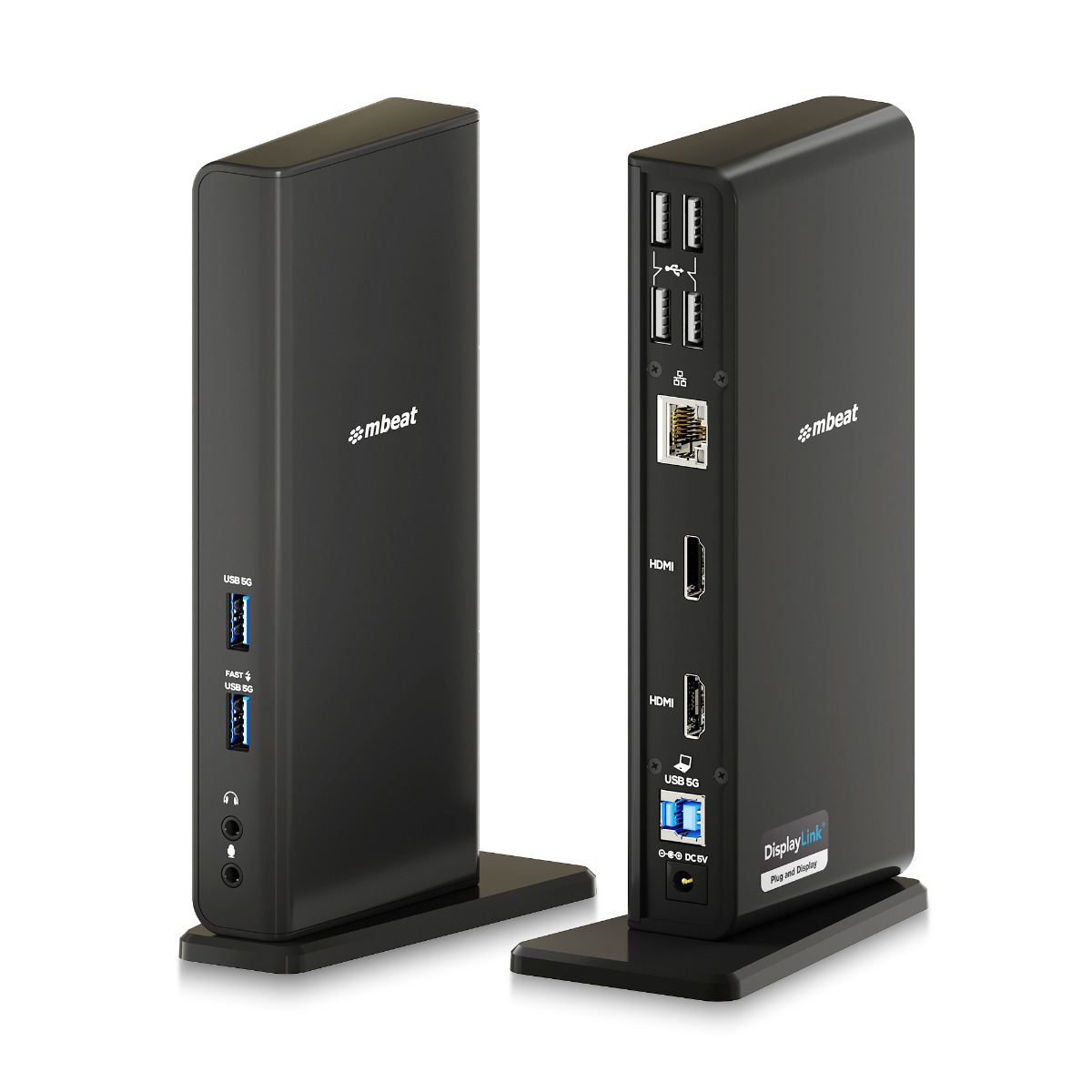
MB-DOCK-DLD20
USB-C/A Dual HDMI DisplayLink® Docking Station
Dual 1080p@60Hz · Mac & Windows · Gigabit LAN
View Product →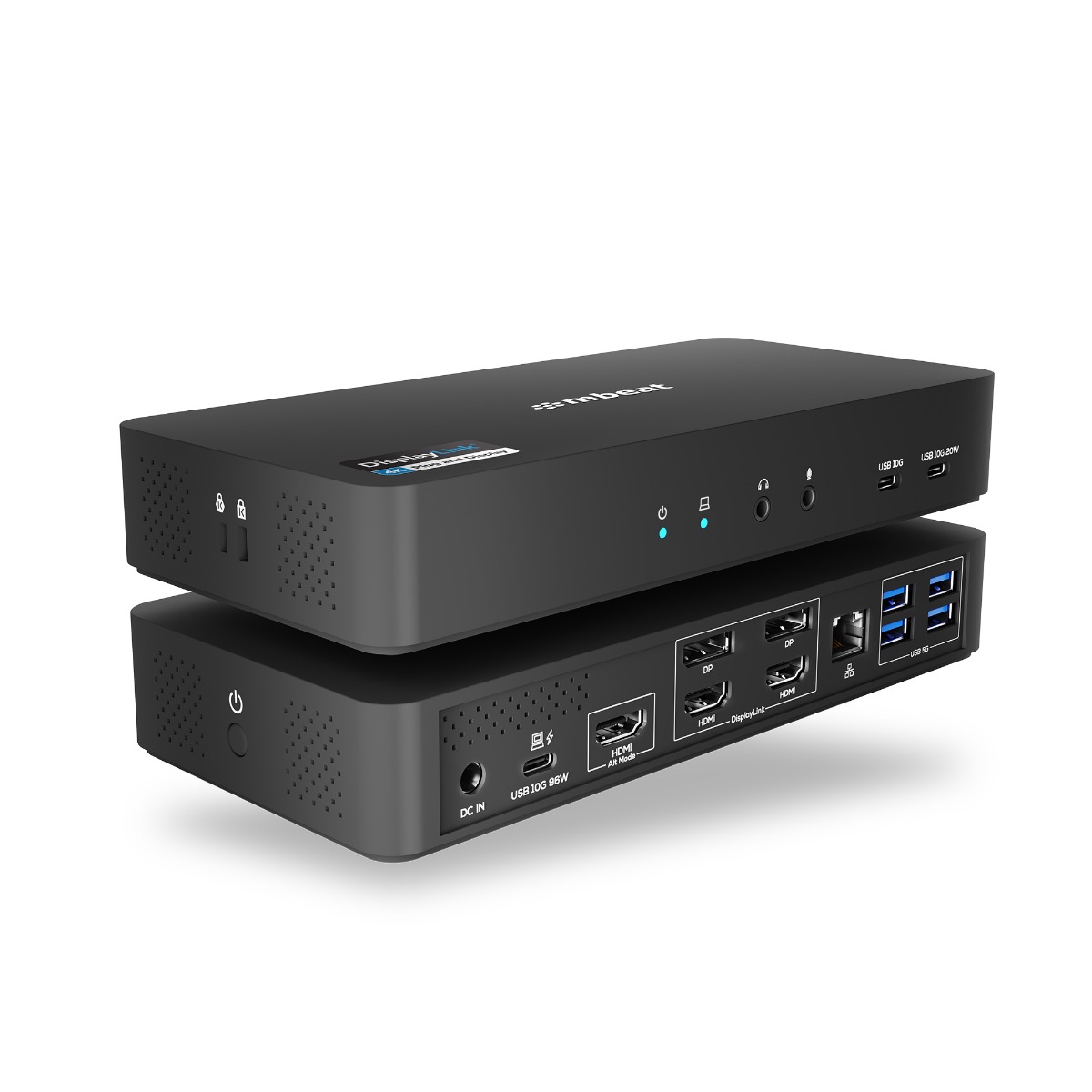
MB-DOCK-HDL18
USB-C Triple 4K Display Docking Station
Triple 4K@60Hz (DP-ALT & DisplayLink) · 96W PD · 135W PSU · K-Lock
View Product →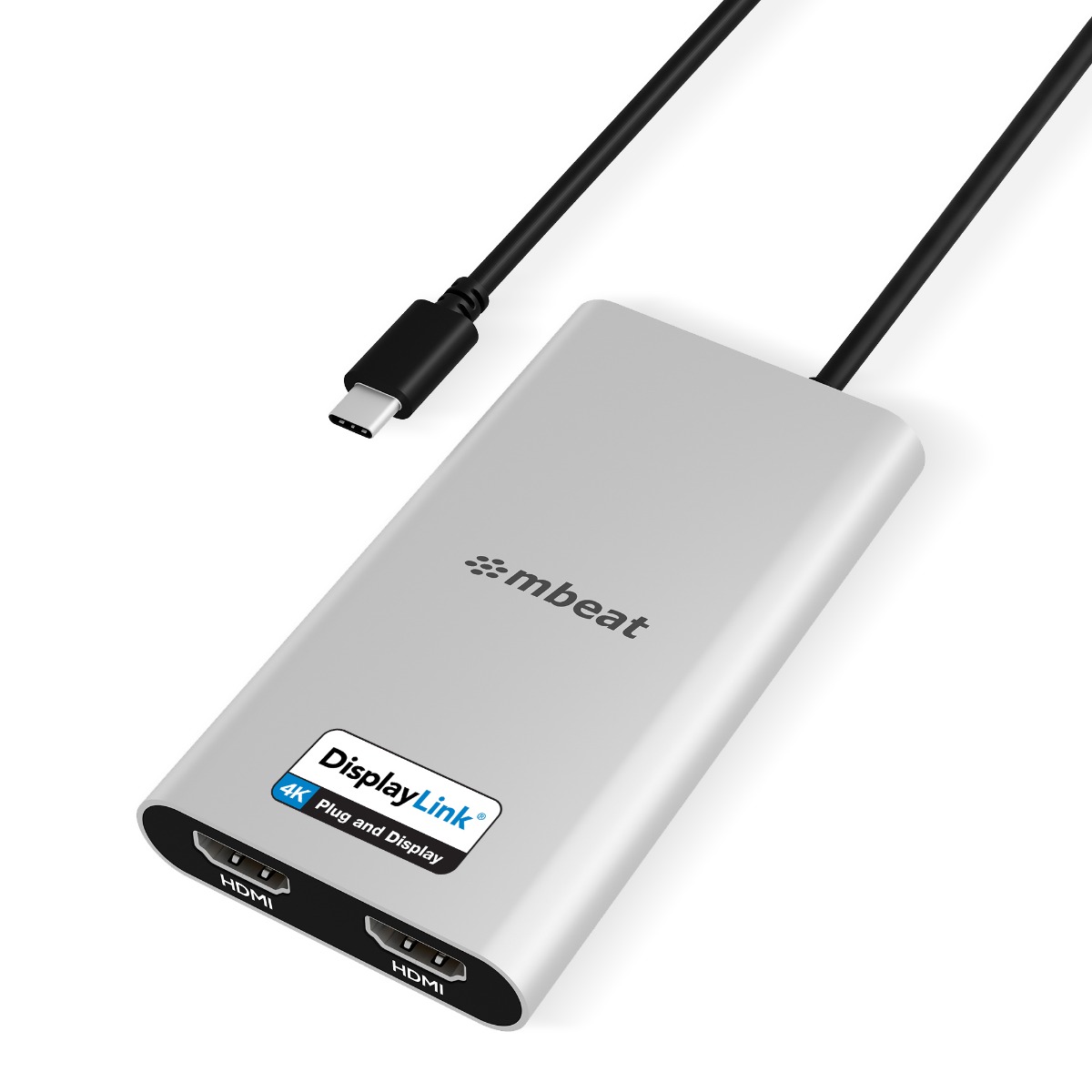
MB-DLA-CD2H
USB-C Dual 4K HDMI DisplayLink® Adapter with PD Pass-through
Dual 4K@60Hz · 90W PD Pass-through · Mac M1/M2/M3 & Windows
View Product →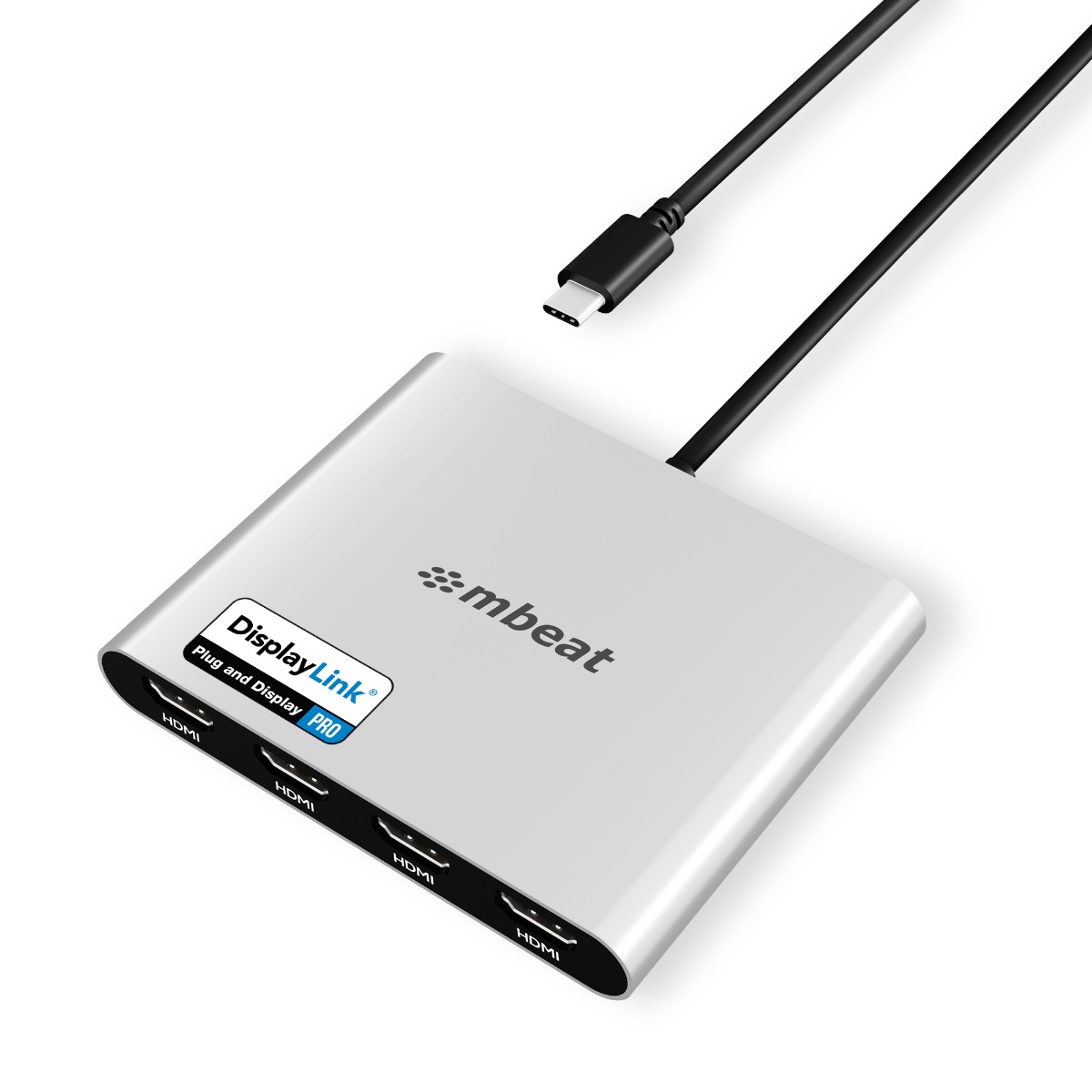
MB-DLA-CQ4H
USB-C Quad 4K HDMI DisplayLink® Adapter with PD Pass-through
Quad 4K@60Hz · 90W PD Pass-through · Mac M1/M2/M3 & Windows
View Product →Australian owned and operated · Melbourne-based support · 2-year warranty
Frequently Asked Questions
Does DisplayLink work on Mac M1, M2, and M3?
Yes. DisplayLink is specifically designed to overcome the external display limitations of Apple Silicon Macs. With a DisplayLink-certified dock or adapter and the DisplayLink Manager driver installed, you can connect two, three, or even four monitors to your M1/M2/M3 Mac in true extended desktop mode.
Do I need to install a driver to use DisplayLink?
On Windows, DisplayLink drivers are largely installed automatically via Windows Update. On macOS, you will need to manually download and install the DisplayLink Manager application from the Synaptics website. It is a quick one-time setup. mbeat includes a driver download link with every DisplayLink product.
What is the difference between DisplayLink and a regular USB-C dock?
A regular USB-C dock uses your laptop's built-in graphics (DisplayPort Alt Mode) to output video, which is limited by how many displays your laptop's GPU natively supports. DisplayLink uses a dedicated chip to process and transmit video independently — this is why it can drive additional monitors even when your laptop's hardware cannot do it alone.
Will DisplayLink affect video quality or performance?
Certified DisplayLink products support up to 4K@60Hz/120Hz resolution with smooth, low-latency output. For office productivity, presentations, and everyday use, performance is excellent. For very fast-paced gaming a direct Thunderbolt connection may be preferable — but for professionals and office environments, DisplayLink delivers outstanding quality.
Is mbeat DisplayLink certified?
Yes. mbeat's DisplayLink products have been independently tested and certified under the official Synaptics DisplayLink Certified Logo Program. This guarantees maximum compatibility across operating systems and verified performance. mbeat is one of the few Australian-operated brands with formally certified DisplayLink products.
Continue Reading
Coming Soon
USB-C vs DisplayPort Alt Mode vs MST vs DisplayLink: What's the Difference?
Confused by the different connection standards? We break it down clearly.
Coming Soon
DisplayLink Plug and Display vs 4K vs PRO: What the Badges Really Mean
Not all DisplayLink products are the same. Here is how to choose the right one.
