
USB-C, DisplayPort Alt Mode, MST or DisplayLink — Which One Do You Actually Need?

14 April 2026 | 7 min read | Connectivity Guide
USB-C, DisplayPort Alt Mode, MST or DisplayLink — Which One Do You Actually Need?
You are shopping for a docking station or multi-monitor adapter. The product description mentions USB-C, DisplayPort Alt Mode, MST, and DisplayLink. Each one sounds technical. Each one sounds important. But nobody explains what they actually mean or why it matters for your laptop.
This guide cuts through the jargon. We explain each technology in plain English, show you exactly when each one works (and when it does not), and help you choose the right solution for your setup — whether you are a Mac user, a Windows professional, or managing a mixed workplace.
First: USB-C is a Connector Shape, Not a Standard
This is the number one source of confusion. USB-C refers to the physical shape of the plug and port — the small oval connector on modern laptops, phones, and tablets. It does not tell you anything about what that port can actually do.
Important: Not all USB-C ports are equal
Two laptops can both have USB-C ports, but one might support video output and the other might not. One might deliver 100W of power, another only 5W. The connector looks identical. The capability is completely different. This is why checking your laptop's specifications matters before buying any dock or adapter.
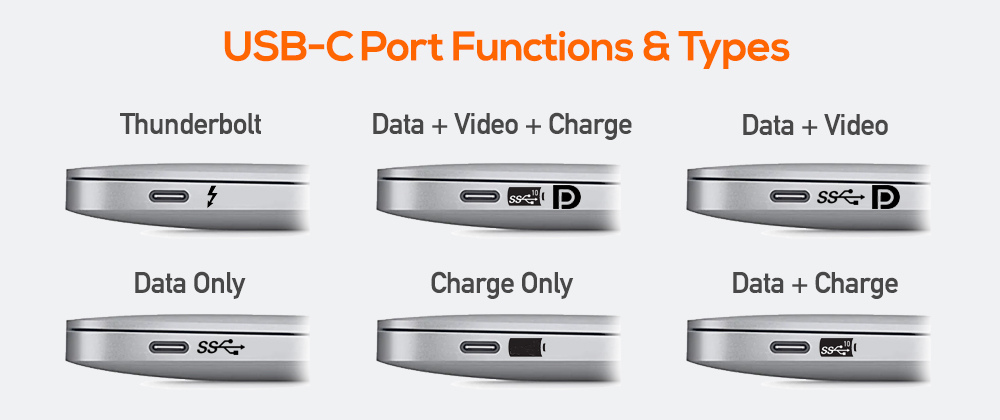
Think of USB-C like a highway. The road looks the same from above, but different lanes carry different types of traffic. DisplayPort Alt Mode, Thunderbolt, USB 3.2, and USB4 are all different lanes on that same USB-C highway.
What is DisplayPort Alt Mode (DP Alt Mode)?
DisplayPort Alt Mode means your USB-C port can carry a DisplayPort video signal — in addition to data and power — all through that one cable. It uses your laptop's built-in GPU to generate and send the video signal directly.
How it works
Your laptop GPU sends a DisplayPort signal through the USB-C cable directly to a monitor or dock. No extra chip, no driver needed. It is a direct, native connection.
What it is good for
Connecting one high-quality external monitor. Fast, simple, plug and play. Supports 4K and even 8K on newer standards. Works on Windows and Mac.
The limitation
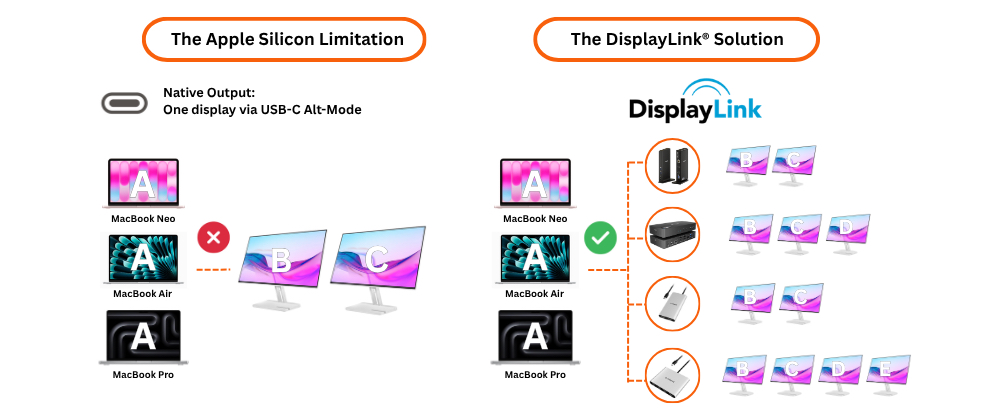
DP Alt Mode is limited by how many displays your laptop's GPU natively supports. For most Mac M1/M2/M3 base chips, that is one external display. A regular USB-C dock using DP Alt Mode cannot add more displays than your GPU allows — no matter how many ports the dock has.
What is MST (Multi-Stream Transport)?
MST stands for Multi-Stream Transport. It is a DisplayPort feature that allows a single DisplayPort connection to carry multiple independent video streams — essentially splitting one display output into several monitors.
How it works
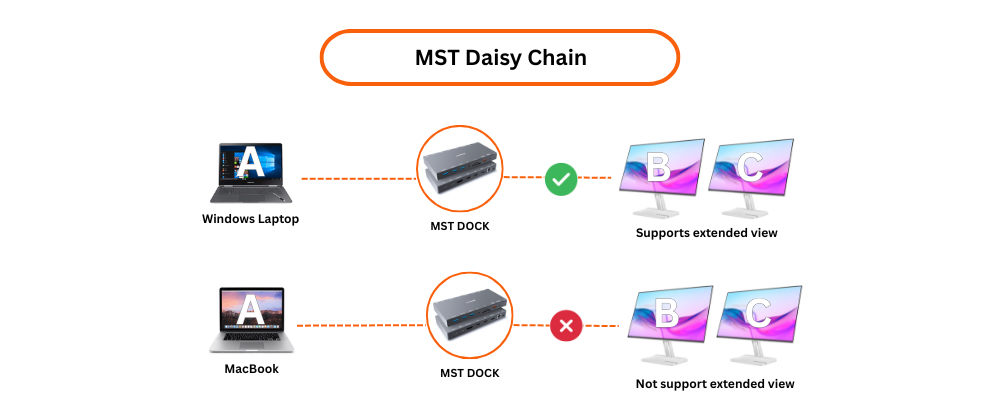
MST hubs or docks split the single DisplayPort signal into multiple outputs. You can also daisy-chain MST-compatible monitors — plugging Monitor 2 into Monitor 1's DisplayPort output, and so on.
What it is good for
Windows users who want dual or triple monitors from a single DisplayPort connection. Works well in corporate Windows environments with MST-compatible docks and monitors.
The limitation
MST does not work on macOS at all. Apple has never supported MST on Mac. If you are a Mac user or managing a mixed Mac and Windows fleet, MST is not a viable solution. It also requires MST-compatible monitors and docks, and resolution is shared across all connected displays.
What is DisplayLink (and How is it Different)?
DisplayLink is a completely different approach to multi-monitor connectivity. Instead of relying on your laptop's GPU and native display output, DisplayLink uses a dedicated chip inside the dock or adapter to process and transmit video independently over a standard USB connection.
How it works
A small software driver on your laptop compresses the video signal and sends it as data over USB. The DisplayLink chip inside the dock decodes it and sends it to your monitors. Your laptop's GPU is bypassed entirely for those displays.
What it is good for
Adding multiple monitors to any laptop — including Mac M1/M2/M3 — regardless of the laptop's native GPU limitations. Works on Mac, Windows, ChromeOS, and Android. Supports multiple 4K@60Hz/120Hz display (with latest DL-7000 series chipset).
What to keep in mind
DisplayLink requires a driver to be installed. On Windows this is largely automatic. On Mac it requires a one-time manual install of the DisplayLink Manager app. For gaming or very high frame rate work, a native Thunderbolt connection is preferable — but for office and professional use, DisplayLink performance is excellent.
Side-by-Side Comparison
Here is how all four technologies compare across the things that matter most:
| Feature | USB-C DP Alt Mode | MST | DisplayLink |
|---|---|---|---|
| Works on Mac | Yes ✓ | No ✗ | Yes ✓ |
| Works on Windows | Yes ✓ | Yes ✓ | Yes ✓ |
| Multi-monitor on Mac M1/M2/M3 | Limited ✗ | No ✗ | Yes ✓ |
| Driver required | No | No | Yes (one-time) |
| Max resolution | Up to 8K | Shared across displays |
Up to 1 x 8K, or multiple 4K@60Hz/120Hz with latest DL-7000 series chipset |
| Works with USB-A laptops | No ✗ | No ✗ | Yes ✓ |
| Hot desk friendly | Partial | Windows only | Yes ✓ |
| Best for | Single monitor, simple setups | Windows multi-monitor only | Mac & Windows, any device, multi-monitor |
Which One Should You Choose?
I have a Mac M1, M2, or M3 and want two or more monitors
Choose DisplayLink. It is the only reliable way to drive multiple external displays on Apple Silicon Macs. DP Alt Mode and MST will not solve this for you.
I have a Windows laptop and just need one extra monitor
DP Alt Mode works fine. A standard USB-C dock with DisplayPort Alt Mode will get the job done without needing a driver.
I have a Windows-only office and want dual or triple monitors
MST or DisplayLink both work. DisplayLink is more flexible as it also supports future Mac devices and USB-A legacy machines.
I manage a mixed Mac and Windows workplace
Choose DisplayLink. One certified dock works for every laptop in the office — Mac, Windows, old USB-A machines, and everything in between. DisplayLink is the enterprise-standard choice for exactly this reason.
I need the fastest possible connection for 8K or high-refresh gaming
Choose Thunderbolt. For maximum bandwidth and ultra-high resolution at high frame rates, Thunderbolt 4 or 5 is the premium choice. mbeat also offers certified Thunderbolt docking stations for this use case.
Why mbeat Chose DisplayLink for Its Certified Range
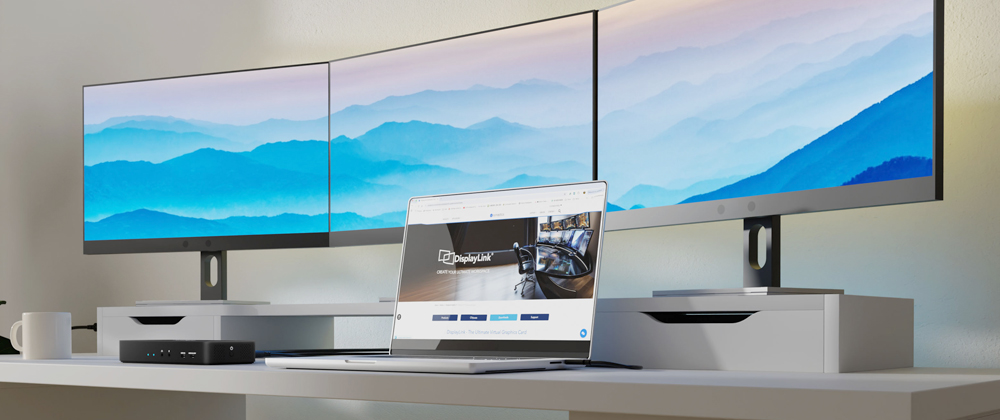
When designing our enterprise connectivity range, mbeat chose DisplayLink as the foundation because it is the only technology that solves the multi-monitor problem for every device, every OS, and every workplace scenario — not just Windows, not just new laptops.
Our DisplayLink products are formally certified under the Synaptics DisplayLink Certified Logo Program — independently tested for compatibility and performance, not just claimed. Combined with a 2-year warranty and Melbourne-based local support, mbeat's DisplayLink range is built for organisations that cannot afford connectivity failures.
mbeat Certified DisplayLink Products
One Solution. Every Laptop. Every OS.
All mbeat DisplayLink products are officially certified and backed by a 2-year warranty with local Melbourne support.
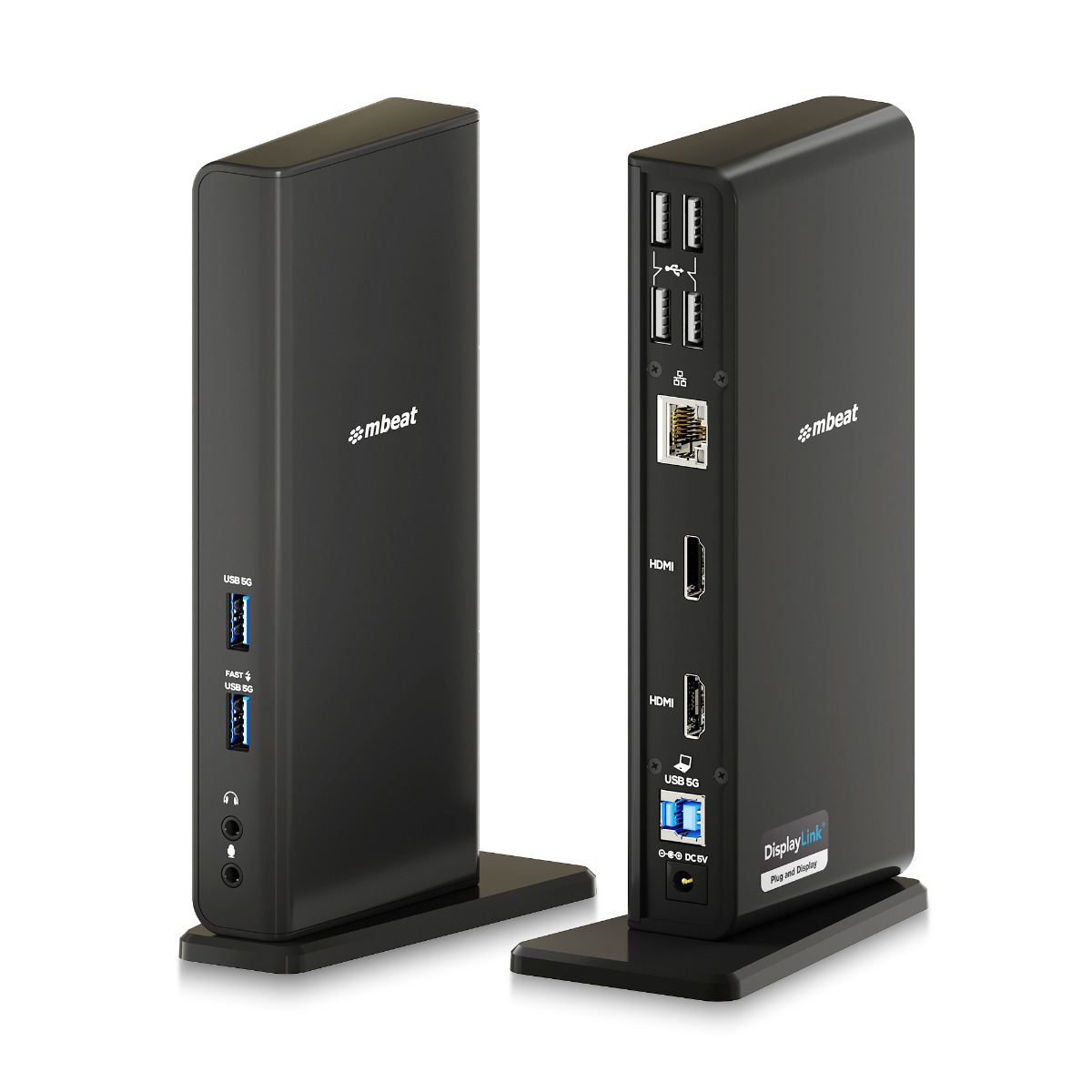
MB-DOCK-DLD20
USB-C/A Dual HDMI DisplayLink® Docking Station
Dual 1080p@60Hz · Mac & Windows · Gigabit LAN · USB-A compatible
View Product →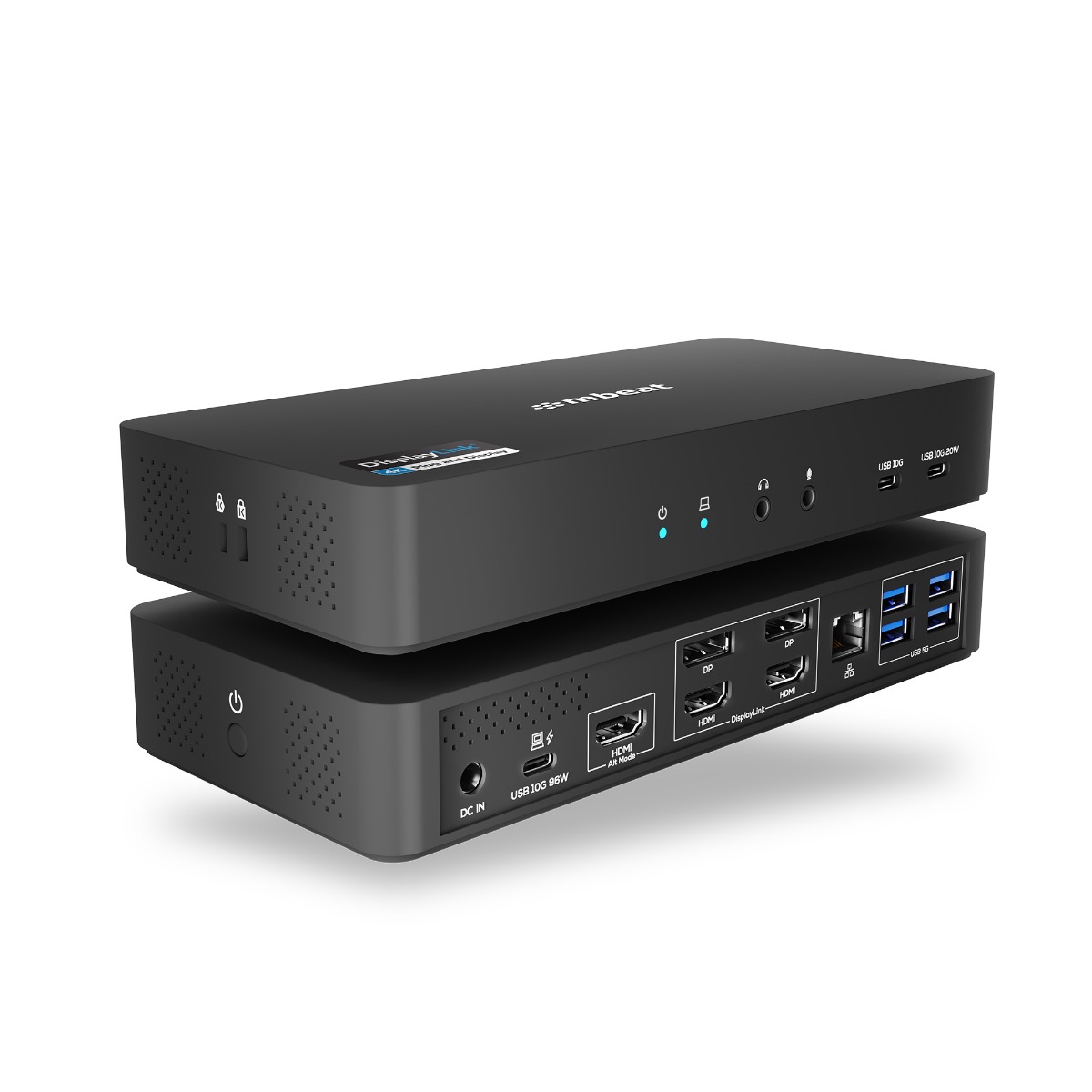
MB-DOCK-HDL18
USB-C Triple 4K Display Docking Station
Triple 4K@60Hz · 96W PD · 135W PSU · K-Lock
View Product →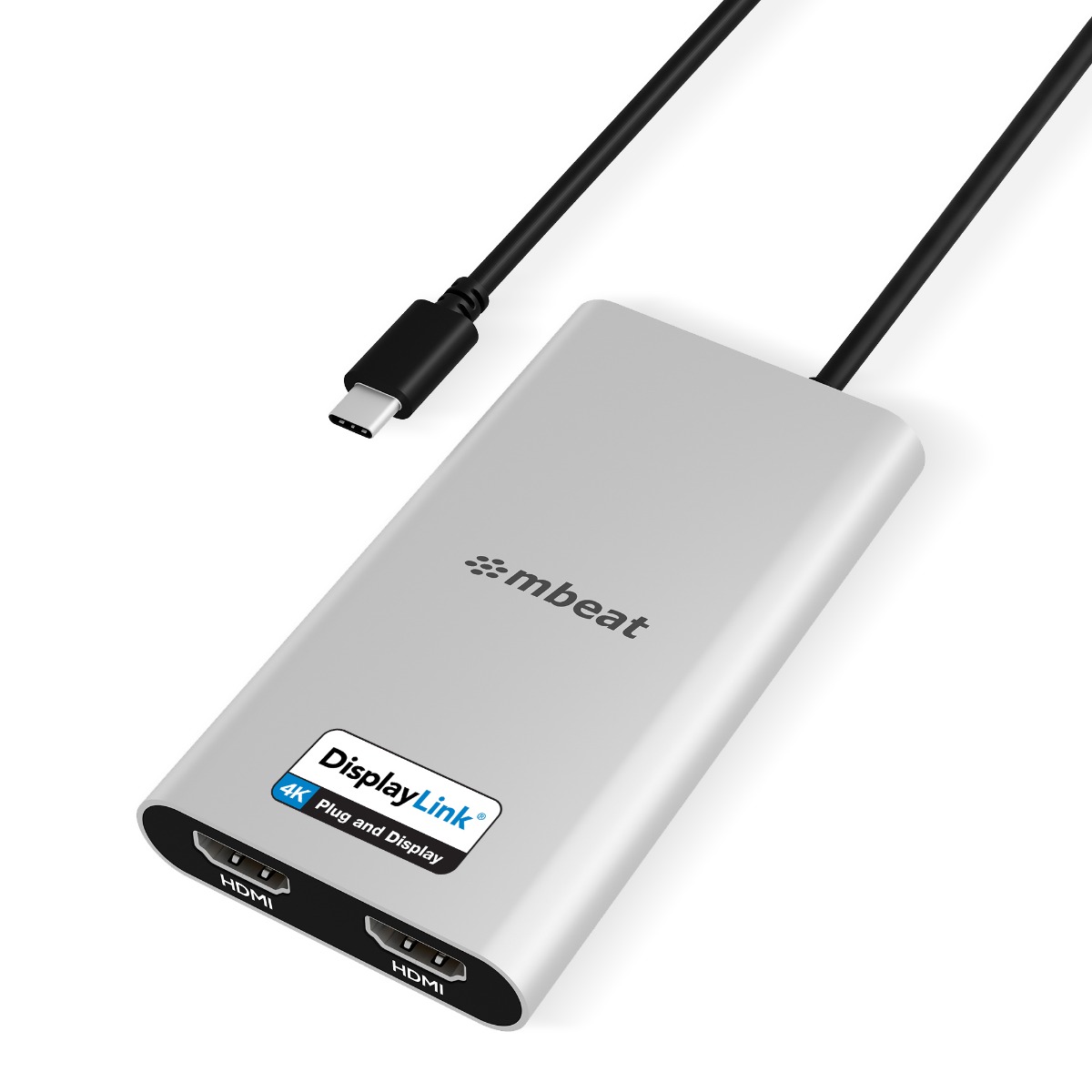
MB-DLA-CD2H
USB-C Dual 4K HDMI DisplayLink® Adapter with PD Pass-through
Dual 4K@60Hz · 90W PD Pass-through · Mac M1/M2/M3
View Product →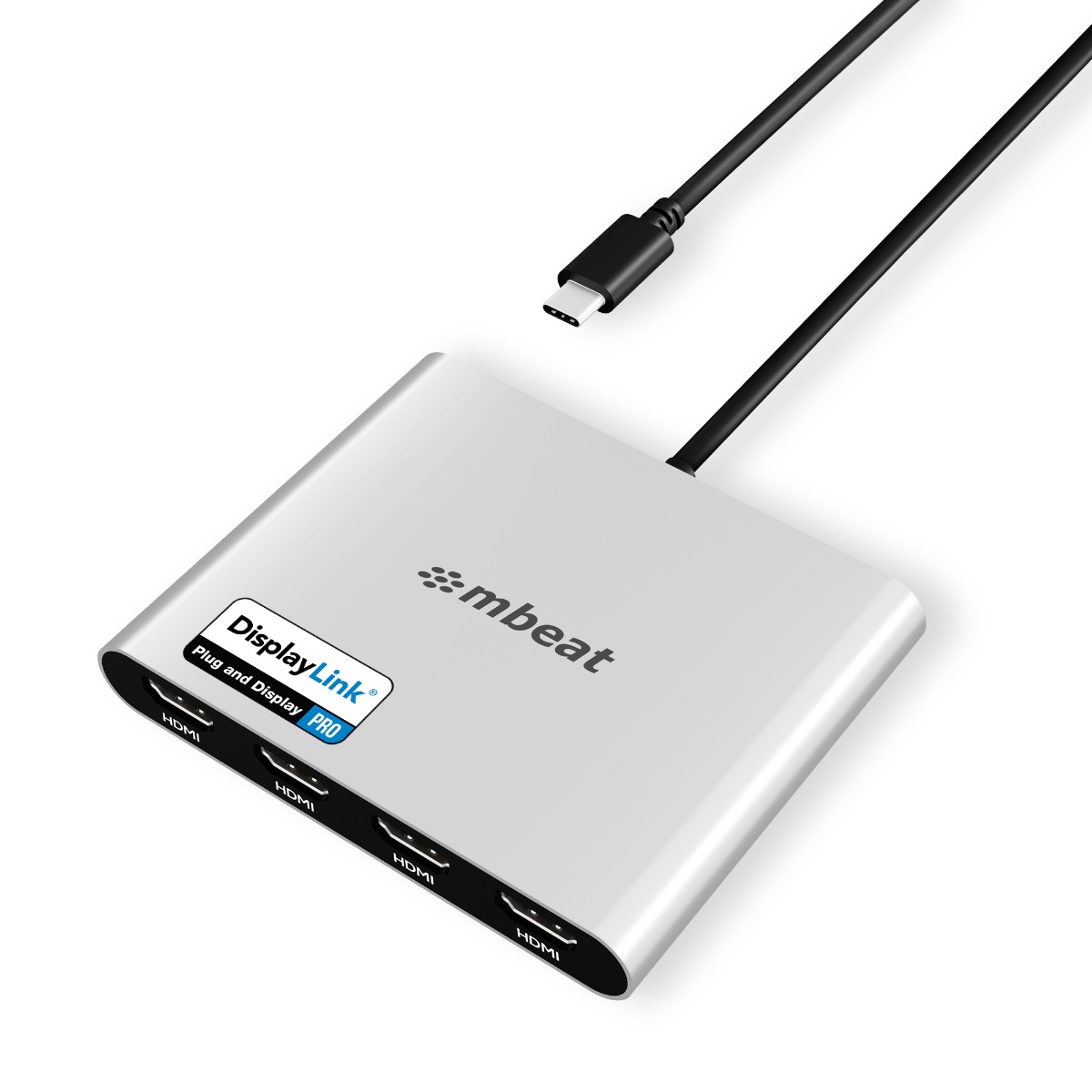
MB-DLA-CQ4H
USB-C Quad 4K HDMI DisplayLink® Adapter with PD Pass-through
Quad 4K@60Hz · 90W PD Pass-through · Mac M1/M2/M3
View Product →Australian owned and operated · Melbourne-based support · 2-year warranty
Frequently Asked Questions
Can I use a USB-C dock with DisplayPort Alt Mode on a Mac M1 or M2 for dual monitors?
No. Mac M1 and M2 base chips only support one external display natively. A dock relying on DisplayPort Alt Mode will only activate one monitor even if the dock has multiple HDMI or DisplayPort outputs. You need a DisplayLink-based dock to unlock dual or triple monitors on these Macs.
Does MST work on Mac?
No. Apple has never supported MST (Multi-Stream Transport) on macOS. MST is a Windows-only feature for multi-monitor setups via a single DisplayPort connection. Mac users need DisplayLink technology to achieve the same result.
Is DisplayLink better than DisplayPort Alt Mode?
They solve different problems. DisplayPort Alt Mode is simpler and requires no driver, but is limited to the number of displays your laptop's GPU supports. DisplayLink works around those hardware limits and supports more devices and operating systems. For multi-monitor setups on Mac or mixed environments, DisplayLink is the better choice.
What is the difference between DisplayLink and Thunderbolt?
Thunderbolt is a high-speed hardware interface that uses your laptop's native GPU and processor to drive displays at maximum bandwidth — ideal for 8K, high refresh rates, and external GPUs. DisplayLink uses a software-driven chip approach over standard USB, making it compatible with virtually any device. Thunderbolt is faster and premium; DisplayLink is more universal and cost-effective for office environments.
Will a DisplayLink dock work with my older USB-A laptop?
Yes. Because DisplayLink transmits video as data over USB, it works with USB-A connections as well as USB-C. This makes it ideal for organisations that have a mix of older and newer laptops, allowing a single dock model to serve the entire fleet.
Continue Reading
Read Now
What is DisplayLink? Everything Mac and Windows Users Need to Know
New to DisplayLink? Start with our plain-English guide to the technology.
Coming Soon
DisplayLink Plug and Display vs 4K vs PRO: What the Badges Really Mean
Not all DisplayLink products are the same. Here is how to choose the right one.
