
Thunderbolt 4 vs DisplayLink: Which Dock Do You Need?
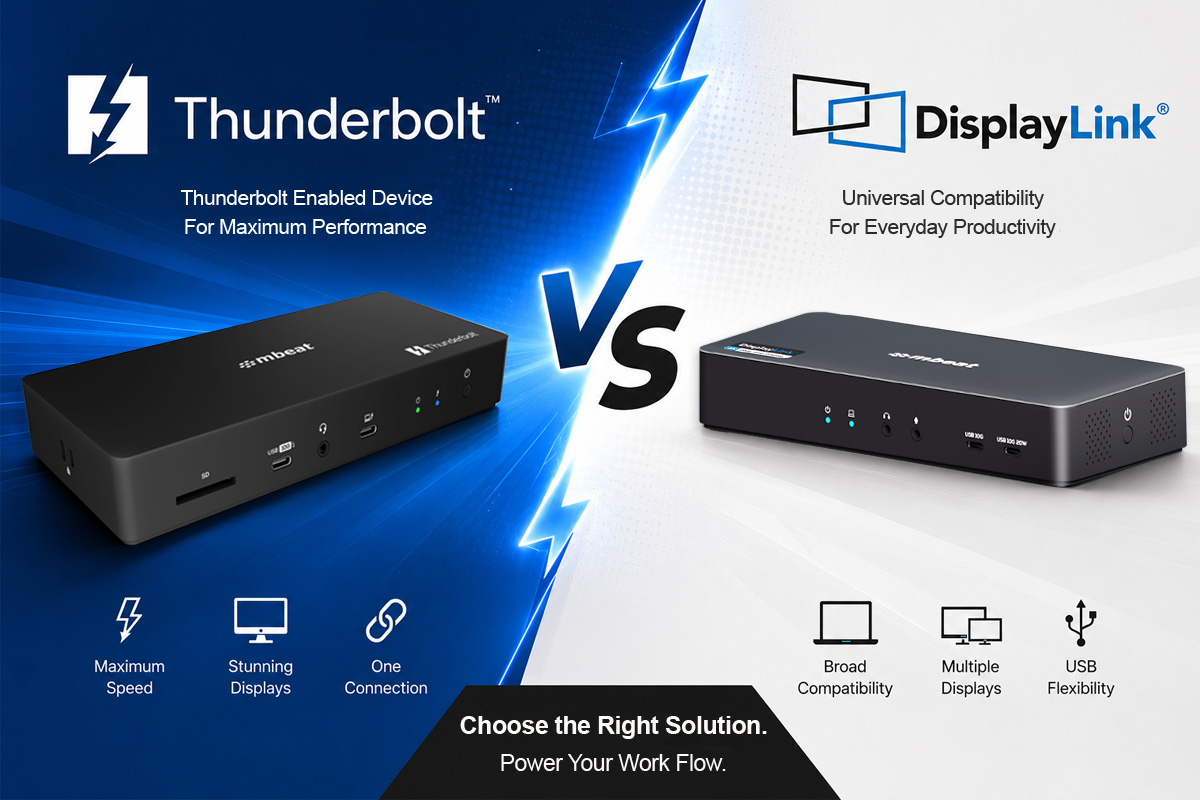
Thunderbolt 4 vs DisplayLink: Two Different Solutions to the Same Problem
You are shopping for a docking station and two product types keep appearing: Thunderbolt 4 docks and DisplayLink docks. Both plug into your laptop via USB-C. Both promise more screens and a cleaner desk. But they work in completely different ways — and choosing the wrong one will leave you frustrated.
This guide explains how each technology works, where each excels, and exactly how to decide which one is right for your setup.
Neither technology is inherently better. They were designed to solve different problems.
Why Two Technologies Exist
Both Thunderbolt 4 and DisplayLink solve the same core problem: your laptop has one or two ports, but you need more — more screens, more peripherals, one-cable simplicity. They just solve it from opposite directions.
Thunderbolt 4 — the hardware path
An Intel-certified interface built into your laptop’s own silicon. It uses your machine’s native display engine to push video, data, and power simultaneously down a single certified cable. Nothing extra to install. No compression. Pure hardware bandwidth.
DisplayLink — the software path
A dedicated chip inside the dock that handles video processing independently of your laptop’s GPU. A small driver compresses screen content and sends it over ordinary USB. Because it bypasses your laptop’s native display hardware, it can drive more screens than your machine’s GPU would normally allow.
The most important thing to understand before buying
A Thunderbolt 4 dock does not increase how many monitors your Mac can drive. If your MacBook Air M2, M3, or MacBook Neo supports only one external display natively, a Thunderbolt 4 dock still gives you only one. Only DisplayLink — which bypasses Apple’s hardware limit entirely — solves that problem. This is the single most common and costly misunderstanding when Mac users shop for docks.
How Thunderbolt 4 Works
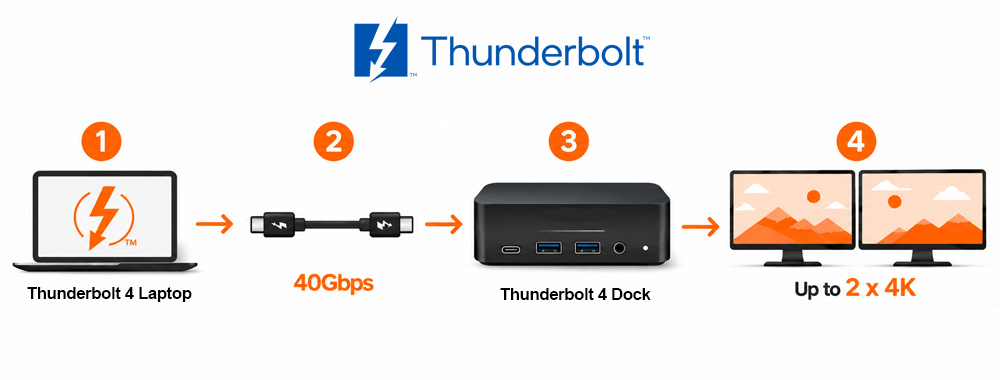
Thunderbolt 4 is built on USB4 and delivers up to 40Gbps of raw bandwidth down a single cable — enough to carry two 4K displays, USB peripherals, PCIe data tunnelling, and 100W+ power delivery simultaneously.
No driver required
Because it uses your laptop’s native display engine, video output is hardware-accelerated and instant. Plug in and it works — no software to install, no Screen Recording permissions, no background process.
PCIe and NVMe passthrough
Thunderbolt 4 supports PCIe tunnelling, allowing high-speed NVMe external drives, capture cards, and other PCIe devices to connect through the dock at full speed. USB 3.x docks including DisplayLink cannot do this.
Display count is limited by your laptop’s GPU
You can only drive as many monitors as your laptop’s chip supports natively. Most Intel laptops support two external displays. MacBook Pro M4 Pro and Max support three to four. MacBook Air, MacBook Neo, and MacBook Pro base models — one only, regardless of which dock you use.
How to confirm your laptop has Thunderbolt 4
Not every USB-C port is Thunderbolt 4. Check your laptop’s specification sheet — not just the port shape. Thunderbolt ports are marked with a lightning bolt symbol (⚡). Many mid-range Windows laptops and most AMD Ryzen laptops have USB-C ports that are USB 3.2 only and will not activate Thunderbolt dock features.
How DisplayLink Works
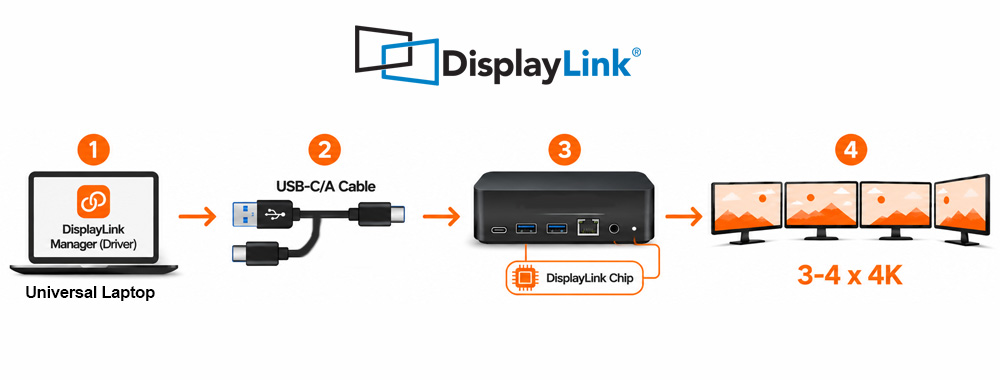
DisplayLink embeds a dedicated graphics processor inside the dock. That chip handles display output independently of your laptop’s GPU — which is why it can exceed your machine’s native display limit.
Step 1 — The driver captures your screen content
The free DisplayLink Manager app runs silently in the background. It captures what should appear on your additional screens and compresses it into a USB data stream. On Windows, the driver installs automatically. On Mac, a one-time manual install takes about two minutes.
Step 2 — Compressed video travels over USB-C to the dock
The data stream is sent down a standard USB-C cable — or even USB-A. DisplayLink works over USB 3.x at 5–10Gbps and does not need a Thunderbolt port. It works on any laptop with any USB-C port.
Step 3 — The DisplayLink chip reconstructs and outputs the image
The dedicated chip decompresses the stream and outputs a clean video signal to each connected HDMI or DisplayPort monitor — up to 4K@60Hz per screen, across two, three, or four displays simultaneously. macOS treats each screen as a separate extended desktop.
Why DisplayLink is the standard solution for Apple Silicon Mac users
MacBook Air M1 through M4, MacBook Neo, and MacBook Pro base models all have GPU-level restrictions on external display count. DisplayLink’s chip bypasses those restrictions entirely. macOS treats the dock as a virtual graphics adapter — Apple’s hardware limit does not apply. This is why DisplayLink is used by enterprises globally to deploy Mac hot-desk workstations at scale.
Side-by-Side Comparison
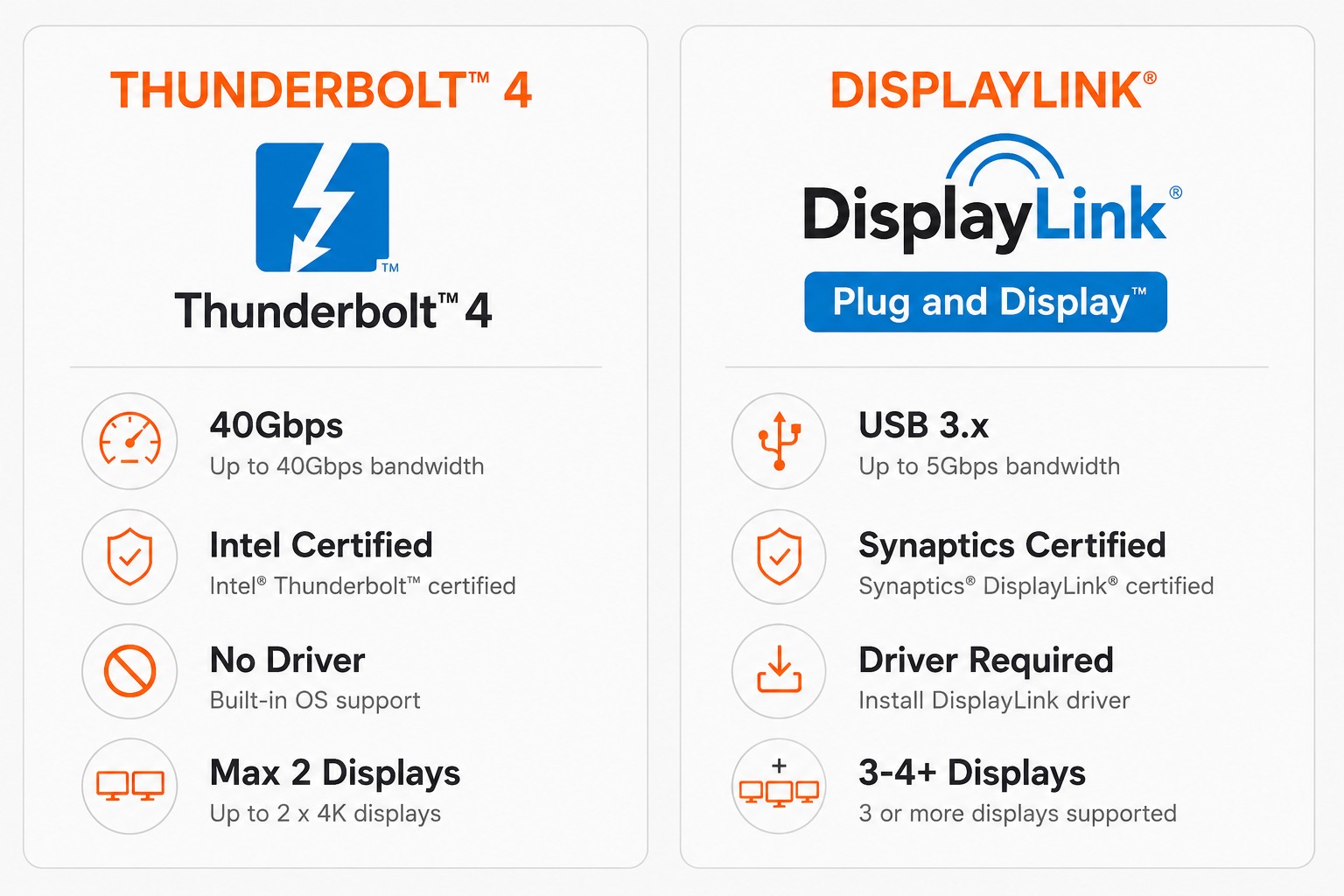
Which One Should You Buy?
Start with your laptop and your screen count. Everything else follows from there.
Choose Thunderbolt 4 if…
Your laptop has a confirmed Thunderbolt 4 port and you need maximum data throughput for NVMe drives or PCIe devices alongside your monitors. You want zero-driver, instant plug-and-play. Two external displays is enough for your workflow. You are a Windows power user, developer, or creative working from a permanent high-performance desk.
Choose DisplayLink if…
You have a Mac — especially Apple Silicon (M1, M2, M3, M4, MacBook Neo). You need three or more external monitors from one dock. Your workplace runs a mix of Mac and Windows laptops on the same desk hardware. Your laptop does not have a Thunderbolt port. You are deploying hot-desk workstations across an office fleet.
Still unsure? Choose DisplayLink.
DisplayLink works universally across Mac and Windows, requires no Thunderbolt port, and solves problems that Thunderbolt 4 cannot — including Apple’s display limit. If your fleet is mixed or your primary machine is a Mac, DisplayLink is the safer, more flexible investment.
Can You Use Both at the Same Desk?
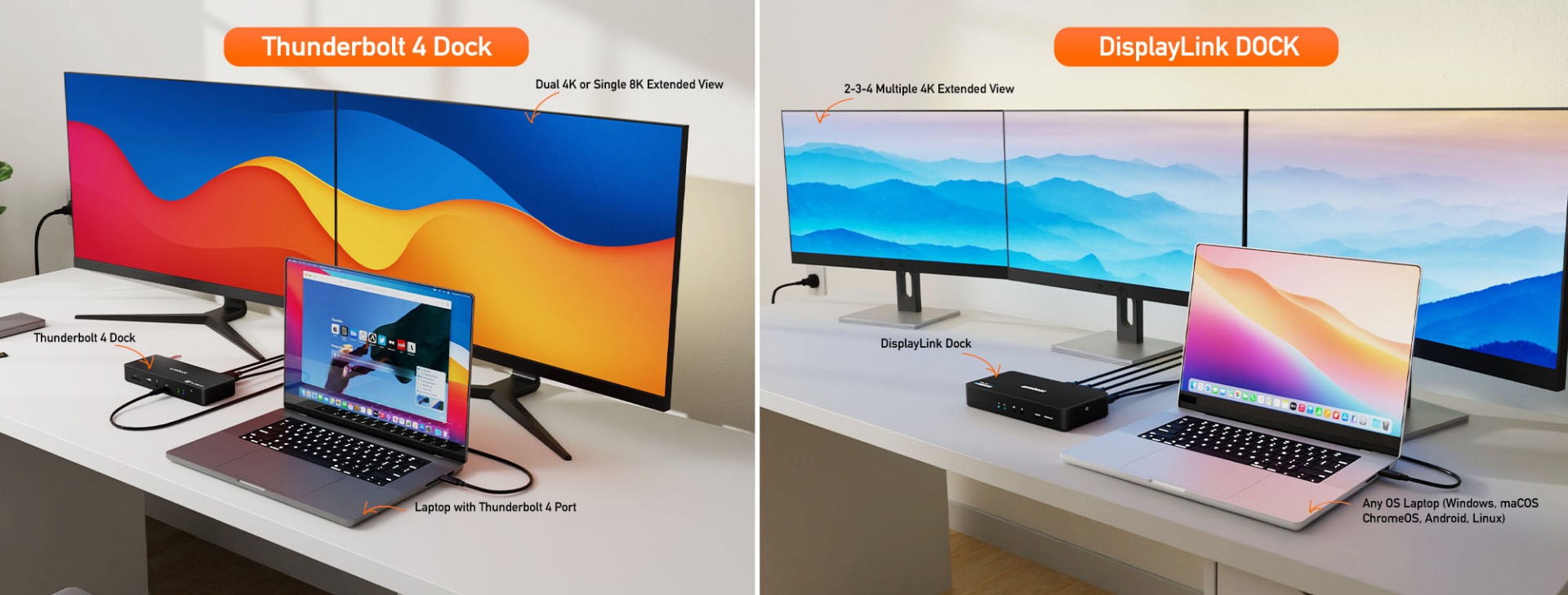
Yes — and some power users do exactly this. A Thunderbolt 4 dock handles primary monitors at full hardware bandwidth, while a DisplayLink adapter adds a third or fourth screen independently. Both technologies run simultaneously without conflict.
This is particularly useful for MacBook Pro M4 Pro or Max users who want to push beyond their native display count, or Windows users who need four or more monitors from a single machine.
The mbeat DisplayLink Range — Certified for Mac and Windows
mbeat’s certified DisplayLink range is stocked locally in Australia with official Synaptics certification and a 2-year warranty. All products work with MacBook Neo, MacBook Air, MacBook Pro M1 through M5, and Windows laptops across USB-C.
mbeat Certified DisplayLink Range — Mac & Windows Compatible
Dual, Triple, or Quad Monitors. One USB-C Cable.
Independently certified by Synaptics. Backed by a 2-year warranty with Melbourne-based local support.
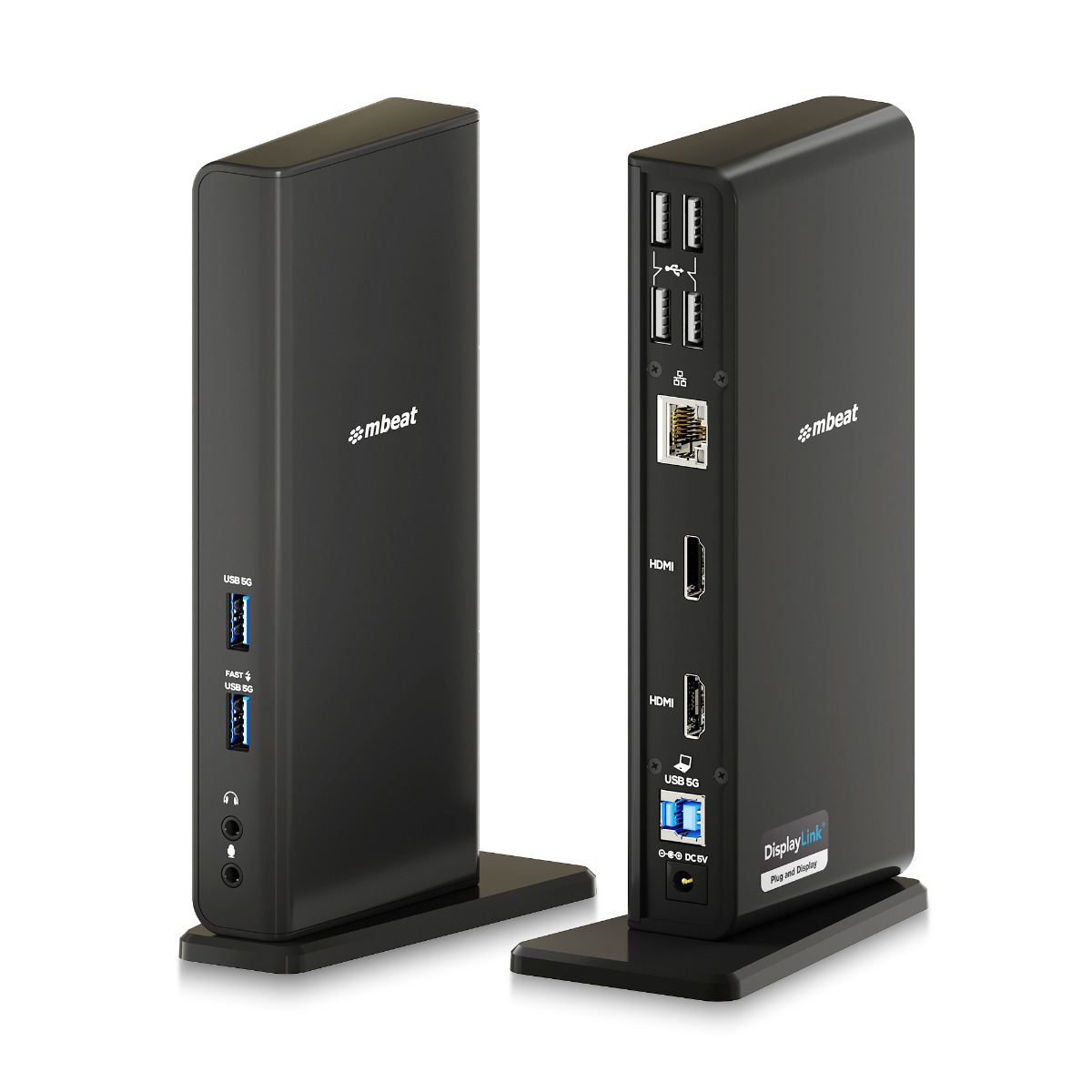
MB-DOCK-DLD20 — Best for: dual monitor desk setup with Ethernet
USB-C/A Dual HDMI DisplayLink® Docking Station
Dual 1080p@60Hz · Mac & Windows · Gigabit LAN · USB-A & USB-C ports · Plug and Display Certified
View Product →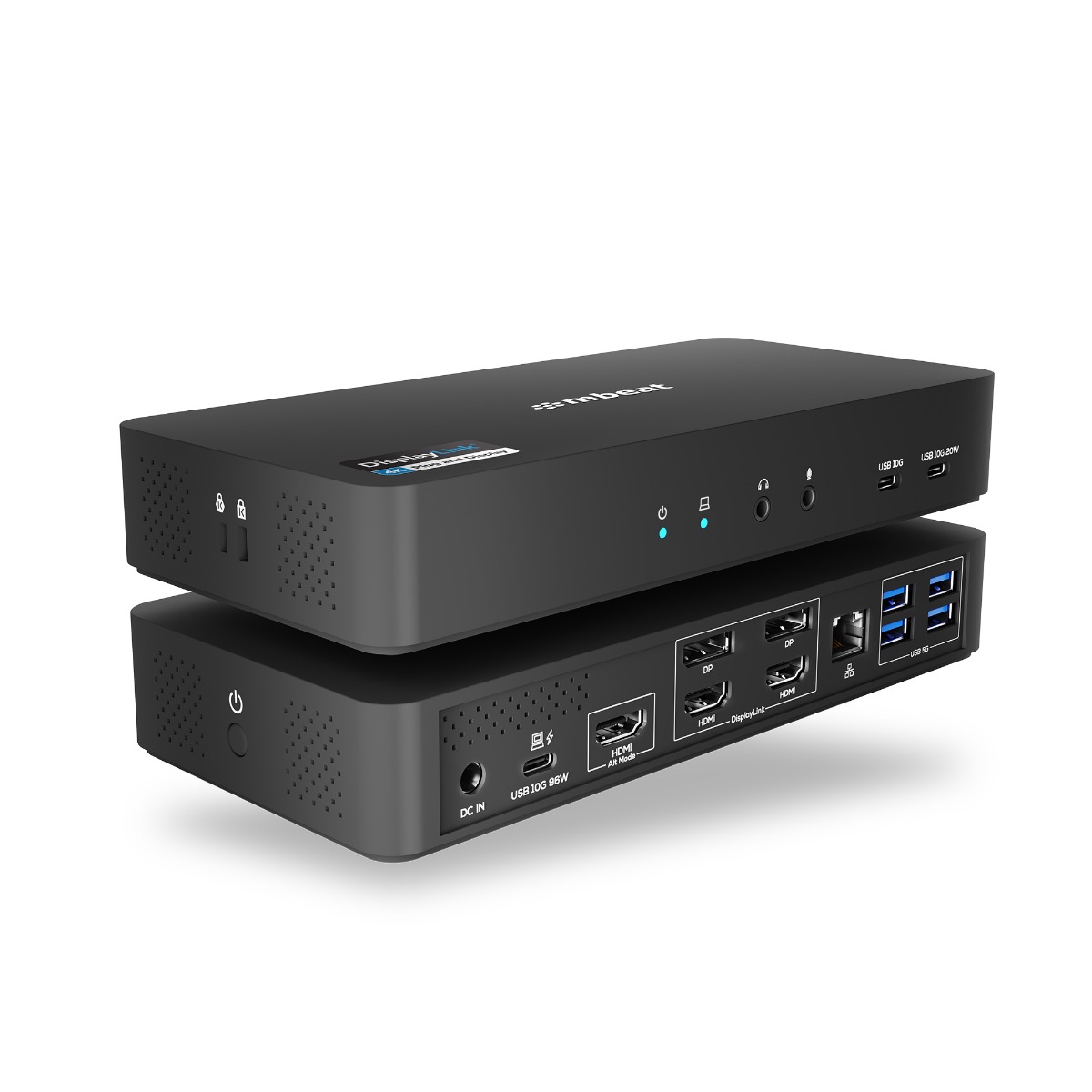
MB-DOCK-HDL18 — Best for: triple 4K monitors with full docking station
USB-C Triple 4K Display Docking Station
Triple 4K@60Hz (DP Alt Mode & DisplayLink) · 96W PD · 135W PSU · K-Lock · 4K Certified
View Product →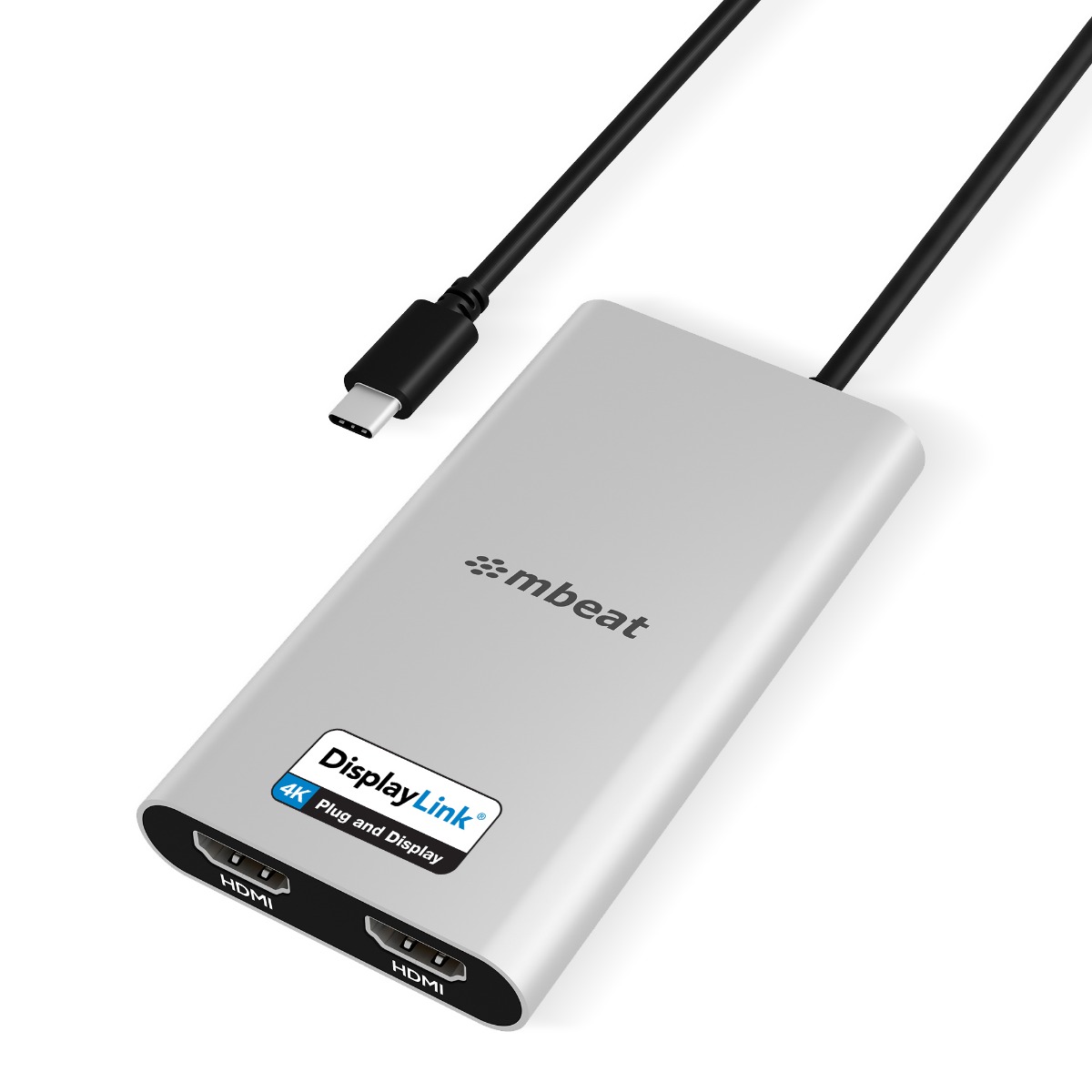
MB-DLA-CD2H — Best for: dual 4K monitors, compact adapter form
USB-C Dual 4K HDMI DisplayLink® Adapter with PD Pass-through
Dual 4K@60Hz · 90W PD Pass-through · Mac M1/M2/M3/Neo & Windows · 4K Certified
View Product →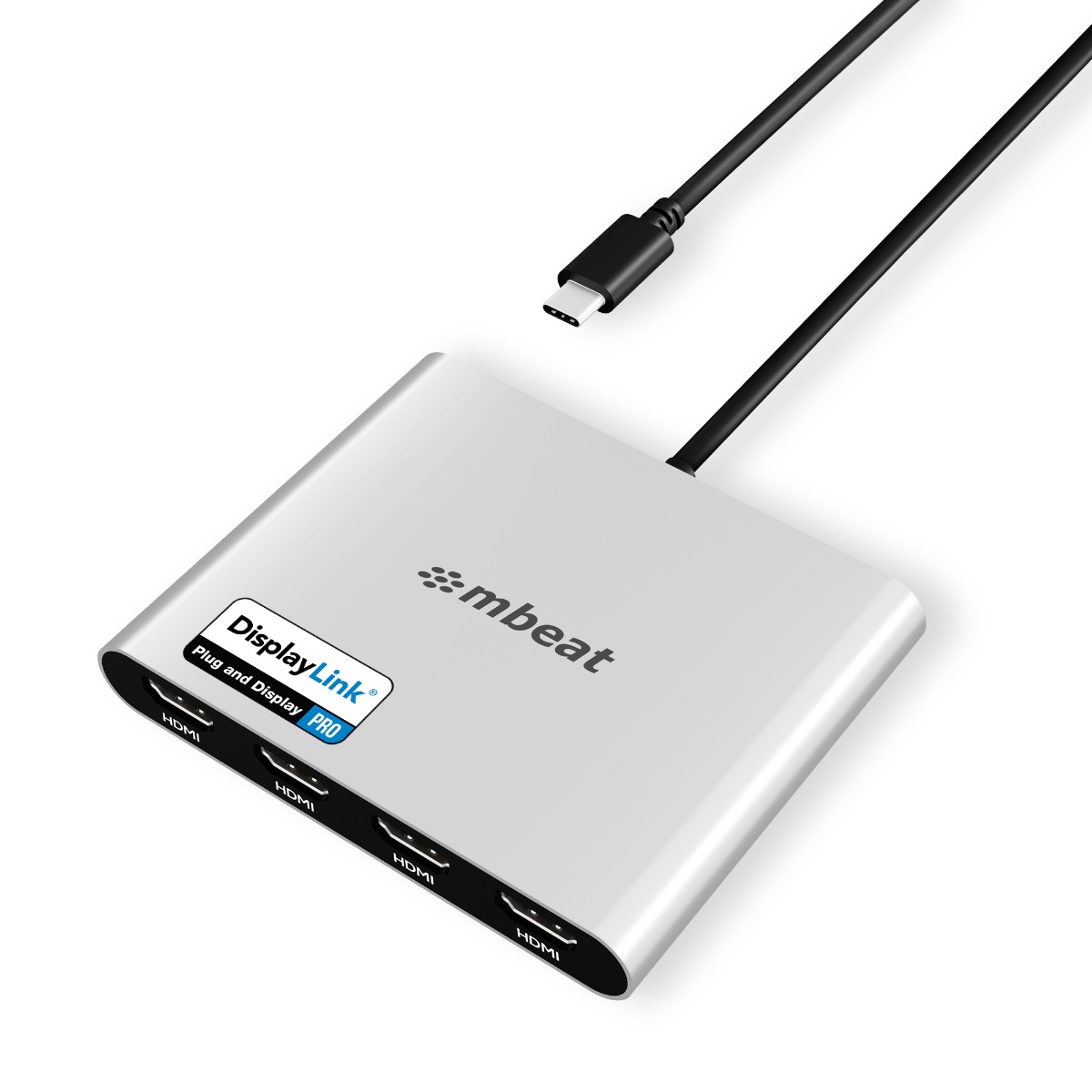
MB-DLA-CQ4H — Best for: quad 4K monitors, enterprise or power user
USB-C Quad 4K HDMI DisplayLink® Adapter with PD Pass-through
Quad 4K@60Hz · 90W PD Pass-through · Mac M1/M2/M3/Neo & Windows · PRO Certified
View Product →Australian owned and operated · Melbourne-based support · 2-year warranty
Frequently Asked Questions
Will a Thunderbolt 4 dock let my Mac drive two external monitors?
Only if your Mac’s chip supports it natively. MacBook Pro M4 Pro and Max can drive multiple displays through Thunderbolt. MacBook Air, MacBook Neo, and MacBook Pro base models are limited to one external display regardless of which dock you use. For those machines, DisplayLink is the only solution that breaks the display limit.
Does my Windows laptop support Thunderbolt 4?
Not automatically. Most Intel Core Ultra and 12th, 13th, and 14th Gen Intel laptops include Thunderbolt 4. Most AMD Ryzen laptops do not — even if they have USB-C ports. Check your laptop’s specification sheet and look for the Thunderbolt lightning bolt symbol (⚡) next to the port. If it is not listed, assume USB-C only and use a DisplayLink dock instead.
Is DisplayLink video quality as good as Thunderbolt?
For everyday professional work — documents, spreadsheets, email, Zoom, web browsing, Figma, coding — the difference is imperceptible. DisplayLink supports 4K@60Hz per display. Where Thunderbolt has an edge is in uncompressed fast-motion content at high frame rates or colour-critical video production. For the vast majority of office and professional use cases, DisplayLink quality is more than sufficient.
Can I use a Thunderbolt 4 dock on a laptop with only USB-C (not Thunderbolt)?
The dock will connect as a basic USB-C hub, but you lose all Thunderbolt features — full bandwidth, daisy-chaining, and possibly some video outputs. A DisplayLink dock is a better investment for laptops without Thunderbolt, as it is specifically designed to deliver multi-monitor output within USB 3.x constraints.
Can I run Thunderbolt 4 and DisplayLink simultaneously?
Yes. The two technologies are fully compatible and run simultaneously without conflict. A common power user setup connects a Thunderbolt 4 dock for primary monitors and power delivery, then adds a DisplayLink adapter to extend to a third or fourth screen. Both run side by side on the same machine.
Are mbeat DisplayLink products officially certified?
Yes. All four mbeat DisplayLink products are independently tested and certified under the official Synaptics DisplayLink Certified Logo Program — covering Plug and Display, 4K, and PRO certification tiers. mbeat is one of the few Australian-operated brands with certified DisplayLink products across multiple tiers, backed by a 2-year warranty and Melbourne-based support.
Continue Reading
Read Now
What is DisplayLink? Everything Mac and Windows Users Need to Know
New to DisplayLink? Start here for a plain-English explanation of the technology and why it solves the Mac multi-monitor problem.
Read Now
USB-C, DisplayPort Alt Mode, MST or DisplayLink — Which One Do You Actually Need?
Understand the full landscape of display connection standards before buying any dock or adapter.
Read Now
DisplayLink Plug and Display vs 4K vs PRO — What the Badges Really Mean
Not all DisplayLink products are the same. Here is how to choose the right certification tier for your screen count and use case.
Read Now
How to Connect Two or More Monitors to MacBook Neo Using DisplayLink®
Step-by-step setup guide for MacBook Neo owners — from driver install to multi-monitor extended desktop in under five minutes.
